
Reading the MT5 interface confidently means knowing what each panel, window, and toolbar element represents at a glance, from the Market Watch list to the order and account history tabs. This final walkthrough ties the platform together, as this FXM680 guide explains.
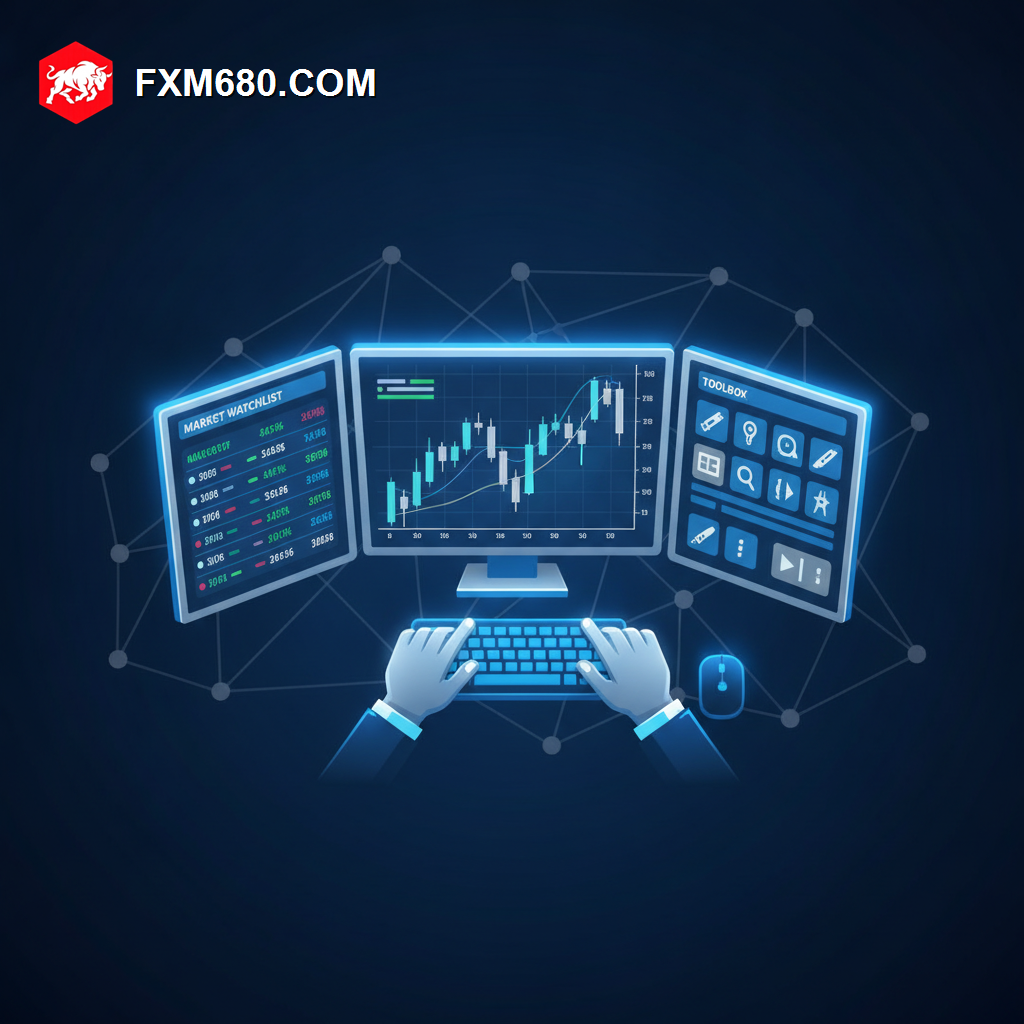
Table of Contents
How to Read the MT5 Interface: An In-Depth Overview
The MT5 interface is organized around a few core panels: the Market Watch list of tradable instruments, the main chart window, the Navigator for indicators and Expert Advisors, and the Toolbox for orders and account history.
Each of these panels can be resized, moved, or docked, allowing traders to customize the layout to match their personal workflow and preferred screen setup.
Fluency with this layout turns the platform from an intimidating grid of windows into a fast, intuitive daily workspace.
Why Interface Fluency Matters for Traders
Quickly locating the right panel, whether checking open positions, adjusting a chart, or reviewing account history, reduces friction and supports faster, more confident decision-making during active trading.
Interface fluency also reduces the risk of costly mistakes, such as placing an order in the wrong panel or misreading account information under time pressure.
Detailed Analysis of Core Interface Elements
Market Watch
This panel lists available trading instruments along with live bid and ask prices, serving as the starting point for opening a chart or placing a new order.
Chart Window
The central chart window displays price action for the selected instrument, supporting multiple timeframes, indicators, and drawing tools layered directly onto the price data.
Toolbox Panel
The Toolbox contains tabs for open trades, pending orders, account history, alerts, and the built-in economic calendar, functioning as the platform’s central account management hub.
| Interface Element | Function |
|---|---|
| Market Watch | Lists instruments and live prices |
| Chart Window | Displays price action and analysis tools |
| Toolbox | Manages trades, history, and calendar |
Step-by-Step Guide to Navigating the MT5 Interface
- Open the Market Watch panel and locate the instrument to be analyzed or traded.
- Double-click or drag the instrument to open its chart in the main window.
- Use the Toolbox’s Trade tab to view open positions and pending orders at any time.
- Check the Toolbox’s History tab to review past trade confirmations and outcomes.
- Customize the panel layout by docking or resizing windows to match personal workflow preferences.
Common Pitfalls to Avoid
A common pitfall is never customizing the default layout, leaving traders navigating a cluttered or inefficient screen arrangement unnecessarily. Another is overlooking the Toolbox’s History tab, missing the opportunity to review past trades regularly as covered earlier in this Academy.
Frequently Asked Questions
Can the MT5 layout be saved for future sessions? Yes, custom layouts and chart templates can generally be saved and reloaded across sessions.
Is the interface different on mobile MT5? Mobile MT5 uses a simplified, touch-optimized layout while preserving the same core functions as the desktop version.
Does every broker’s MT5 look identical? The core interface is consistent, though some brokers apply minor branding or default configuration differences.
Continue Your Forex Learning Journey with FXM680
Interface fluency completes this module’s platform coverage, bringing together everything from order types to daily navigation. Explore the full FXM680 Forex Academy to continue building a complete trading foundation.
Disclaimer: The content provided on this page is for informational and educational purposes only. Trading financial markets involves significant risk. Consult with a certified financial advisor before making any investment decisions.
Keep Learning
Navigate Your Platform With Confidence
A well-organized workspace supports faster, clearer decisions. Explore the full FXM680 Forex Academy to keep building your trading foundation.